
Background
This guide helps you master one of the most important processes in an Amazon business: inventory forecasting.
A good forecast gives you a clear view of the next 8 months of sales and inventory needs. Done well, it helps you avoid stockouts, keep cash flow healthy and plan growth with confidence.
Many sellers don't forecast at all, or do it too late, which leads to cash crunches, missed sales and needless stress. This guide takes you step by step through building a reliable forecast, so you stay in control of your inventory and can plan your next purchase orders with confidence.
Step 1: Copy the forecasting template
- Make a copy of the Inventory Planning template in your Google Drive.
- Rename it for your account, for example "Inventory Forecast – [brand name] Q4 2025".
- This template is where you'll import the data, analyse it and plan.
Step 2: Pull sales data from Sellerboard
- Open the report
Seller Central›Sellerboard›Reports›Sales by product/month
- Download the last 12 full months
For example, if today is September 15, pull September 1 last year to August 31 this year. Choose Excel or CSV and click Download.
- Copy the whole file
Paste it into the template's Sellerboard Data tab using Paste special › Values only.
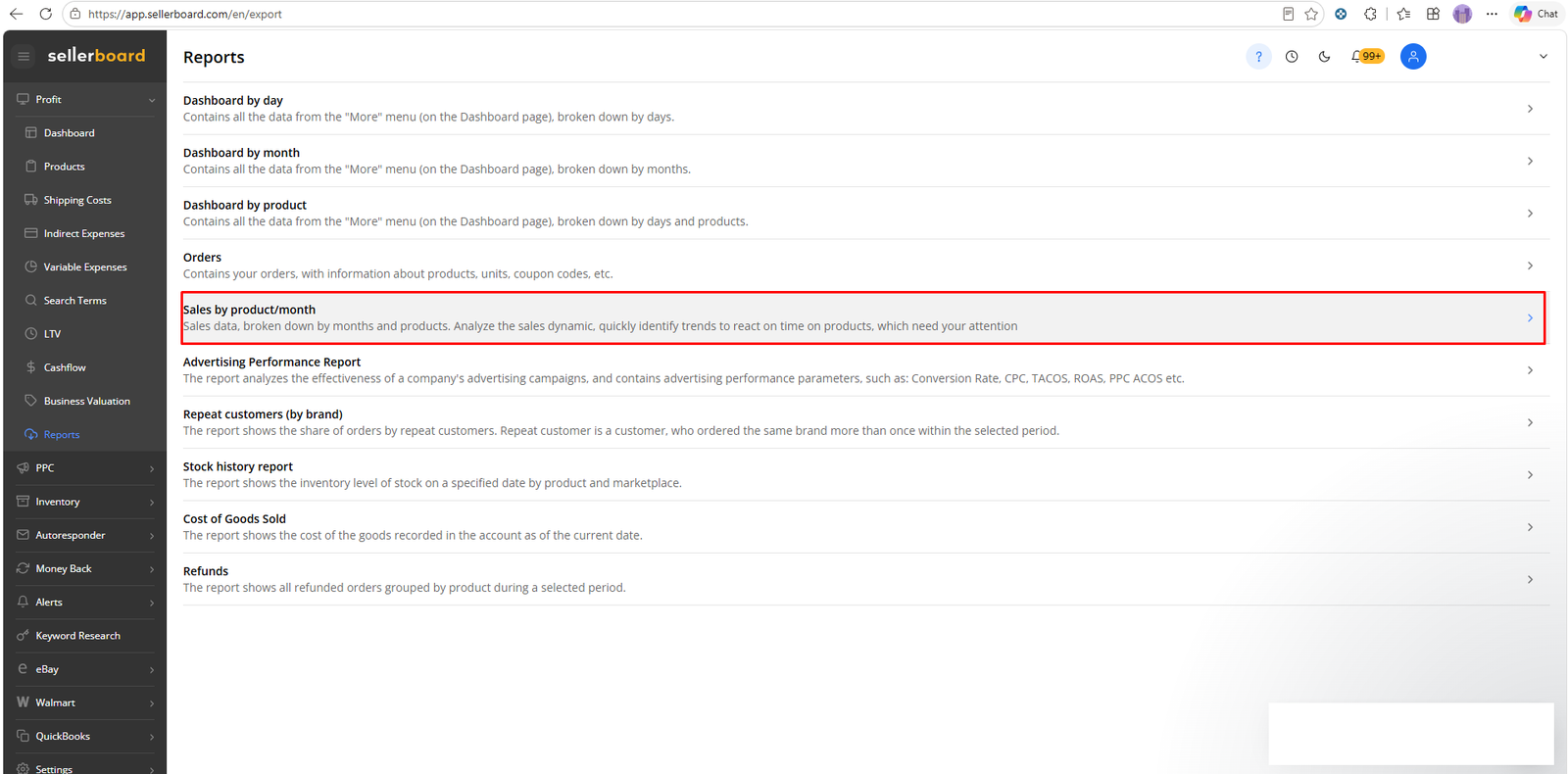
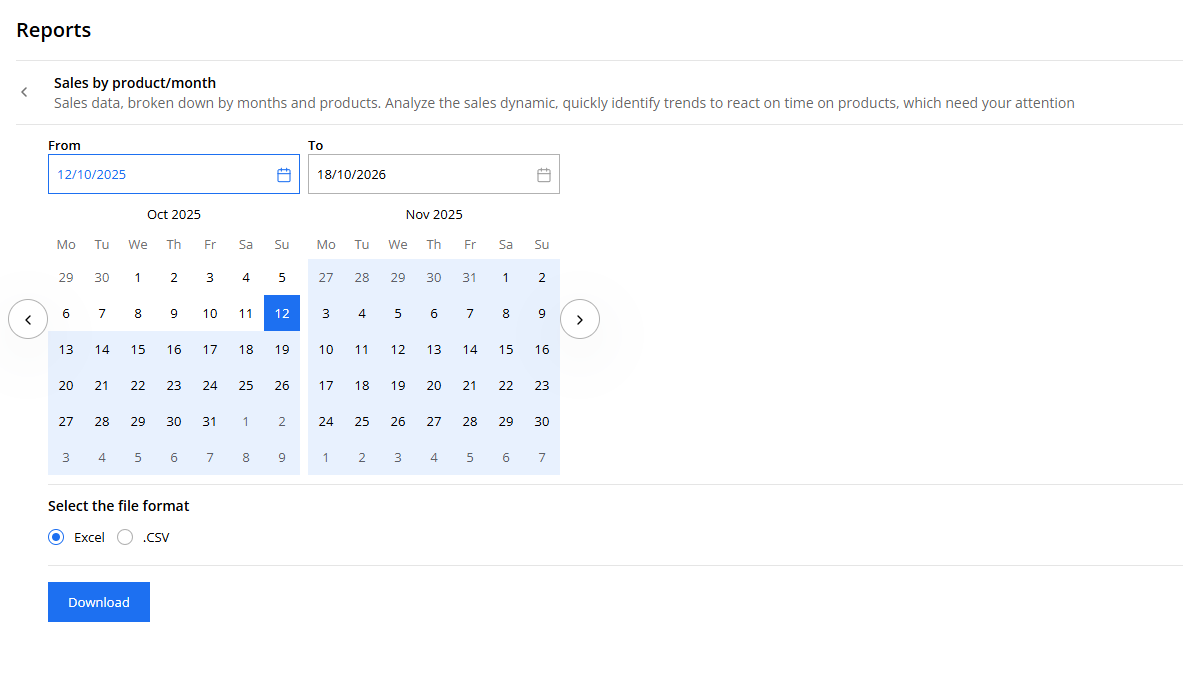
This gives you the historical sales baseline for the forecast.
Step 3: Pull inventory data
- Open the Inventory Planner in Sellerboard
Seller Central›Sellerboard›Inventory›Planner
- Export the inventory report
Click Export at the bottom of the product list.
- Paste it into the template
Copy and paste the values into the Sellerboard Inventory tab.
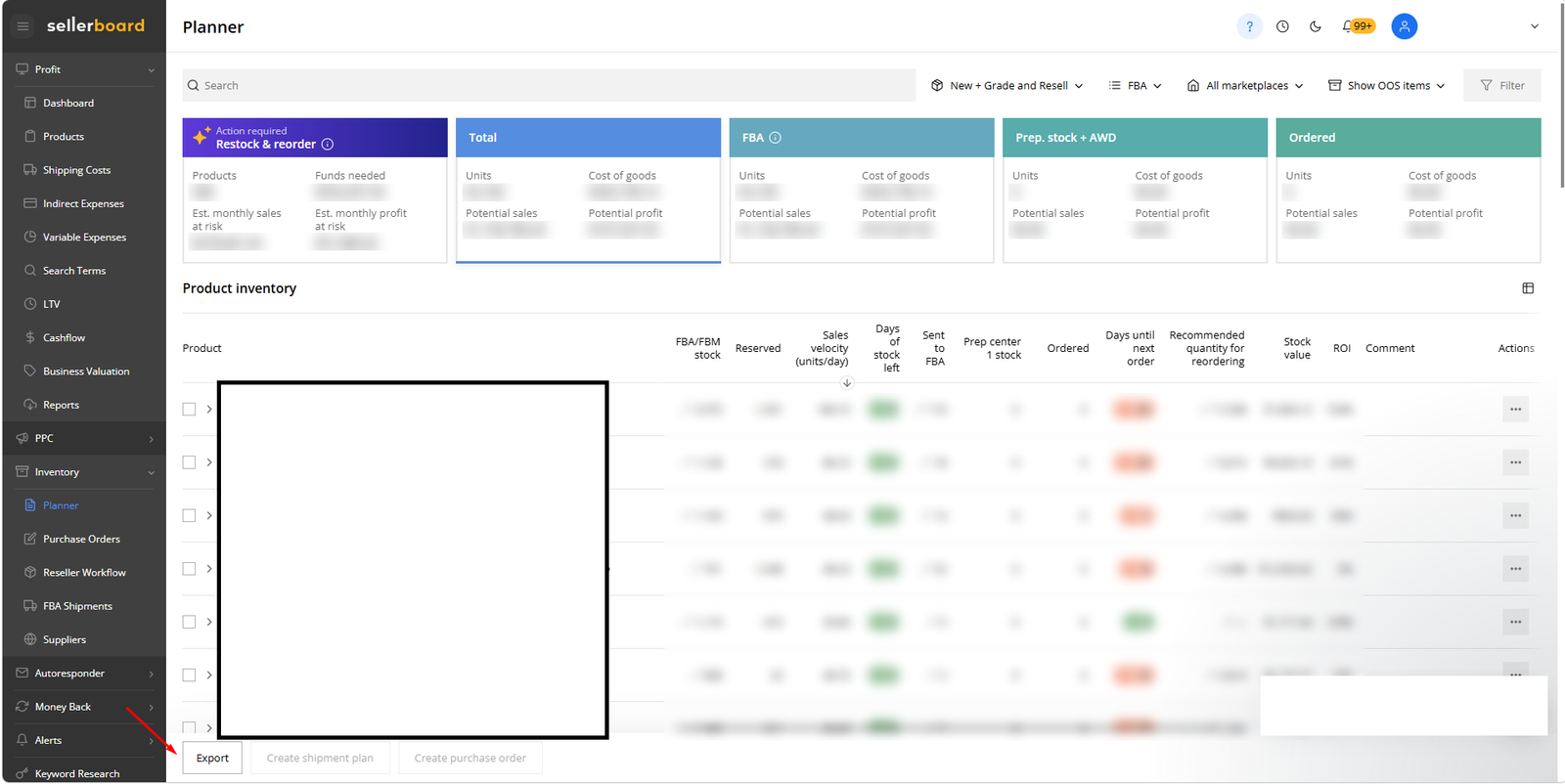
Now the sheet has both your sales and your current stock.
Step 4: Update starting inventory
Check the Starting Inventory column. If Sellerboard doesn't show all of your stock, for example units in 3PL warehouses or still in production, update it by hand. Include:
- FBA available stock
- Inbound shipments
- 3PL inventory
- Production inventory (not yet shipped)
This keeps the forecast accurate.
Step 5: Adjust inbound inventory (if needed)
- By default, inbound shipments already appear from Sellerboard.
- If more inventory is on the way that Sellerboard doesn't show yet, add it by hand in the Inbound Inventory field.
Step 6: Review forecast multipliers
- Each month has a Multiple field.
- Use it to set expected sales against last year's numbers.
- Example: if you expect a relaunch to lift sales in September, set the multiple to 120%. If you plan to scale down in another month, set it to 90%.
- The forecast updates automatically.
Step 7: Set lead times
- Enter your average lead time: production plus shipping.
- Typical examples: 30 to 40 days of production + 50 to 60 days by sea = 90 to 100 days. Air shipments may be around 40 to 45 days in total.
- Add a small buffer to be safe.
- This lets the sheet work out when new inventory will actually arrive.
Step 8: Set buffer stock levels
- Decide how many months of stock you want as a minimum buffer in FBA.
- Example: for your hero product, set 2 months instead of 1.
| Colour | Meaning |
|---|---|
| Green | Safe |
| Yellow | Below the buffer, at risk |
| Red | Critical, risk of stockout |
Step 9: Create your purchase orders
- Look 2 to 3 months ahead in the forecast.
- If a product turns red or yellow, work out how many units it needs to stay green.
- Enter the planned order quantities in the Inbound Inventory field.
- Adjust until the stock stays green for at least 6 to 8 months.
This tells you exactly how much to order and when.
Six-month forecast, units in FBA, AWD, on the way and in production, and how many to order.
Want these numbers for your own account? Get a free audit →Step 10: Final review and sense check
- Review the 8-Month Sales Forecast tab.
- Cross-check the projected sales with your business goals: does the total revenue look realistic? Are you being too conservative, or too aggressive?
- Adjust multipliers or buffers if needed.
Checklist
- Copied the template to my Drive and renamed it
- Pulled the last 12 months of sales from Sellerboard
- Imported inventory data into the template
- Updated starting inventory with 3PL and production numbers
- Adjusted inbound inventory if needed
- Reviewed and set sales multiples by month
- Confirmed lead times are accurate
- Decided on buffer stock levels
- Used the forecast to plan purchase orders
- Reviewed the final 8-month forecast against my goals
Without this process every month, you're working blind: stockouts, cash flow problems and missed sales keep coming back. Done right, it becomes one of the most powerful tools in your Amazon business for growing smartly and staying profitable.
Related guides
- Inventory planning: 5 key principlesHow to decide your next purchase orders: a six-month forecast, monthly POs that keep six months in the cycle, buffers, best sellers first…
- Inventory management systemWhy inventory is the second pillar of an Amazon brand, the team that runs it, and the weekly inventory levels table that stops products…
- Sellerboard for profit trackingSet up Sellerboard so real profit per product (after fees, ads, refunds and product cost) is visible daily, and use its restock and…