
What you get
Amazon Bulk Services lets you link a product's single unit, case packs and pallets in a package hierarchy. Case packs and pallets in that hierarchy can get a discount on their referral fee, based on how many units they contain.
| Units in the case pack or pallet | 2–9 | 10–23 | 24+ |
|---|---|---|---|
| Discount on the referral fee | 15% | 20% | 25% |
| A 15% referral fee becomes | 12.75% | 12% | 11.25% |
| Margin added (at a 15% fee) | +2.25 pts | +3 pts | +3.75 pts |
Case of 12 sold at $60.00, referral fee 15% → $9.00 per order
With the 20% discount (10–23 units): $7.20 per order, a saving of $1.80
At 500 orders a month: $900 a month, about $10,800 a year, for one product
Who qualifies
| Requirement | Rule |
|---|---|
| Program | The case pack or pallet is linked to its unit in a package hierarchy |
| Price | $20 or more (keep the list price and business price above $20 too) |
| And at least one of | 10 or more units, or 1,400 cubic inches or more, or 35 lb or more |
| Products | Hardline and consumable product types |
| Marketplaces (official) | Amazon.com (US) and Amazon.co.jp (Japan), seller-fulfilled offers |
Step 1: make sure a single-unit listing exists
The case has to point at a single unit. If you only sell the pack, create a listing for the single unit first.
- Open Manage All Inventory
Seller Central›Inventory›Manage All Inventory
- Copy the closest existing listing
On the pack's row, open the menu next to the fees and choose Copy listing.
- Turn the copy into the single unit
Change the title, quantity, dimensions, weight, images and price so everything is right for one unit. You may need a new UPC.
- List it
It doesn't have to be in stock, but make it complete in case Amazon requires that later.
Step 2: link the case to the unit by flat file
- Download the Category Listings Report
Request it under Inventory Reports and download it when it's ready. If the report isn't in the list, open a case and ask Amazon to enable it for your account.
Seller Central›Reports›Inventory Reports›Category Listings Report
- Keep only one product family
Delete every row except the single unit and its case packs. Do one product type at a time.
- Fill in the package hierarchy columns
On the single unit and on each case, as in the table below.
- Upload it as a partial update
Go to Add Products via Upload, choose the spreadsheet option, upload the file and pick Partial Update.
Seller Central›Catalog›Add Products via Upload
| Column | Single unit row | Case row |
|---|---|---|
package_level | UNIT | CASE |
package_contains_quantity | (leave empty) | Units per case, e.g. 12 |
package_contains_identifier | (leave empty) | The single unit's SKU |
relationship_type (if the column exists) | (leave empty) | package_contains |
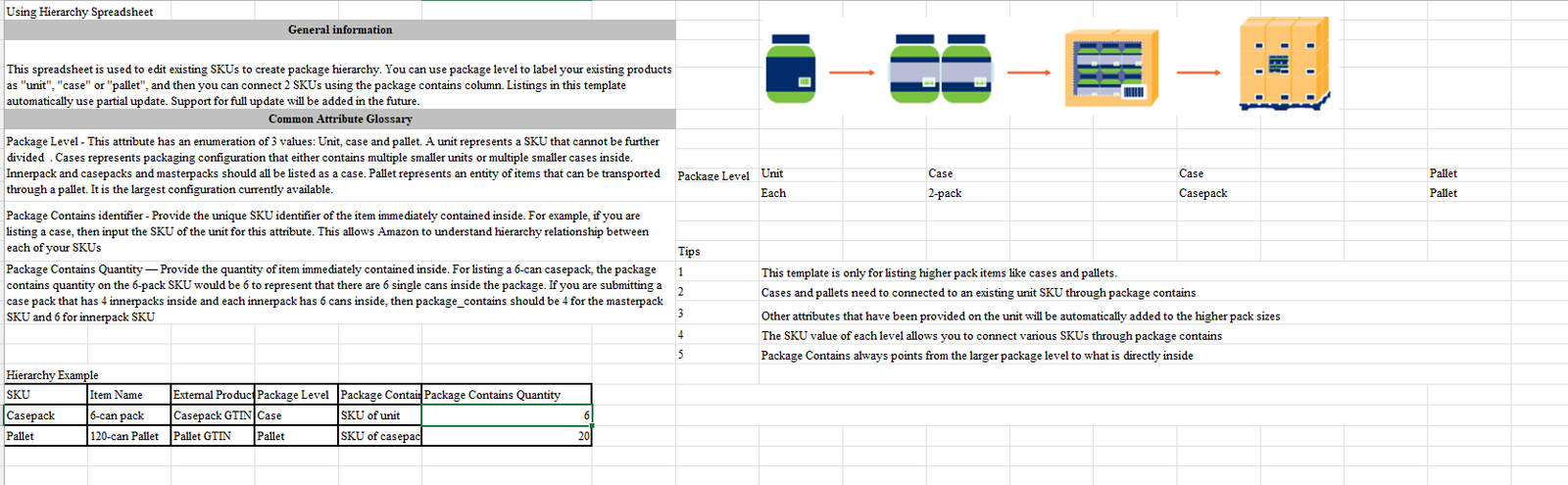
Amazon also offers a dedicated package hierarchy spreadsheet for this, with the same columns. Its rules apply whichever file you use:
- Three levels: Unit (a single item that can't be split), Case (anything that holds several smaller items: inner packs, case packs and master cartons are all Case) and Pallet (the largest level).
- Contains points one level down.
package_contains_identifieris the SKU of the item *directly* inside, andpackage_contains_quantityis how many of those are inside. - Nested packs: a master carton with 4 inner packs of 6 cans is set to contain 4 of the inner pack SKU, and the inner pack to contain 6 of the can SKU.
- Cases and pallets must link to an existing unit SKU, and details given on the unit carry up to the larger packs.
The rows after editing (illustration)
| sku | item_name | package_level | package_contains_quantity | package_contains_identifier | relationship_type |
|---|---|---|---|---|---|
| MAT-1 | Silicone Baking Mat, 1 Pack | UNIT | |||
| MAT-12 | Silicone Baking Mat, Case of 12 | CASE | 12 | MAT-1 | package_contains |
- Every SKU of the ASIN is included (FBA and FBM, each marketplace)
- The unit and the case have the same product type
- Price, list price and business price are all $20 or more
- The unit isn't already set up as a case anywhere in the catalog
- You have a backup of the listing data: deleting the unit or the case later deletes the data for both
Step 3: check the discount is applied
Give it 24 hours, then check in two places.
- Fee preview
In Manage All Inventory, search the case pack's ASIN. The discounted referral fee shows in Estimated fee per unit sold.
Seller Central›Inventory›Manage All Inventory
- A real order
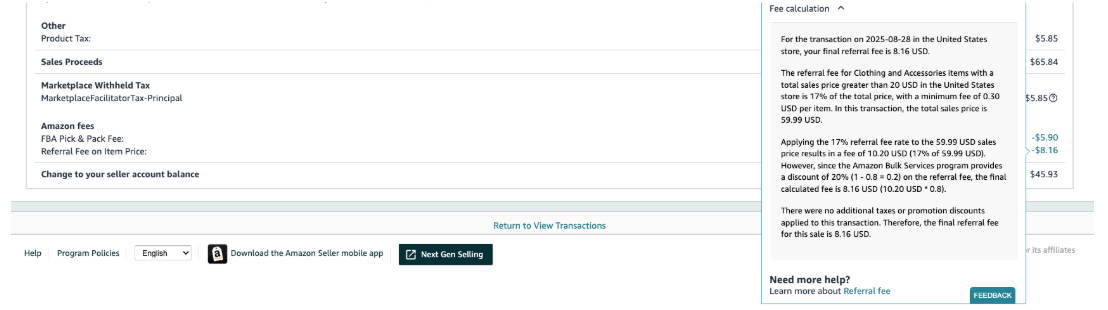
After 24 hours, find the latest order for the case pack with status Payment Complete and open its transaction details. Click the amount next to Referral Fee on Item Price: a Fee calculation panel opens that spells out the standard rate, the Bulk Services discount and the fee you were actually charged.
Seller Central›Reports›Payments›Transaction view
Keeping the discount
| Removes the discount | Keeps the discount |
|---|---|
| Changing an image, the title, the size name or the handling time in Seller Central | Making the change in a flat file that also contains the three hierarchy values |
| Any edit from Manage Inventory or the edit listing page | Uploading that file as a Partial Update |
| A flat file upload without the hierarchy columns | Re-uploading the enrollment file if the discount was lost |
- Save a reusable file when you enroll
One flat file with every enrolled SKU and the three hierarchy values already filled in. Keep it in the account's shared folder.
- For every later edit, use that file
Open it, add the column you need to change, and upload it as a Partial Update. This applies even to changes that have nothing to do with packaging, such as a bullet point.
- Fix Amazon's own changes the same way
Amazon sometimes rewrites a size value that doesn't match the Number of Items and Unit Count attributes. Correcting it in Seller Central removes the discount, so correct it by flat file. Setting Number of Items and Unit Count correctly at enrollment prevents most of these rewrites.
- Tell the team
List the enrolled ASINs and where the file is kept in the account's notes, so whoever edits the listing next knows to use the file.
| Situation | How to do it |
|---|---|
| First enrollment | Category Listings Report, fill in the hierarchy columns, upload as Partial Update |
| Any later edit to an enrolled ASIN | The saved file plus the column you're changing |
| Correcting a value Amazon overwrote | The saved file, not Seller Central |
| Merging or splitting a variation | Flat file, keeping the hierarchy values in it |
| The discount has been lost | Re-upload the enrollment file, then check again after 24 hours |