
Purpose
To raise your FBA storage limits, you submit a request for more space in Amazon's Capacity Manager. This makes sure your inventory can be sent in ahead of key sales periods like Prime Day or Q4.
The guide is written step by step, with clear instructions and examples, so you can follow it yourself or hand it to a virtual assistant (VA) without anything getting missed.
Step 1: Create a new capacity request
- Log in to Seller Central and open your inventory
In older menus: Inventory › FBA Dashboard, with Capacity Monitor at the bottom of the screen.
Seller Central›Menu›Supply chain›Manage Amazon inventory
- Open the Capacity monitor
Click Capacity monitor above the inventory table.
- Pick your product's size tab
For example Standard-size or Oversize.
- Click Go to Capacity Manager
Under the capacity outlook. You can also open Capacity Manager directly from the FBA menu.
- Click Create new request


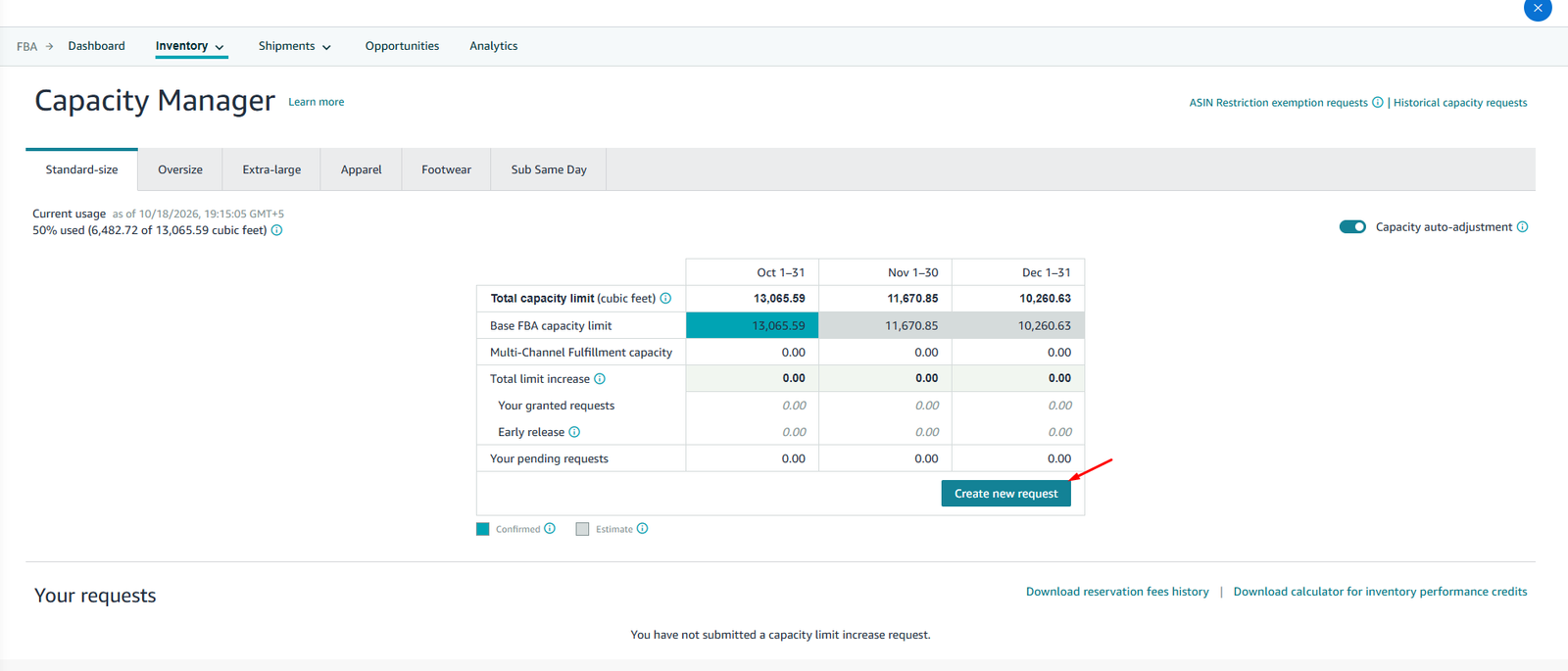
Step 2: Fill in the request details
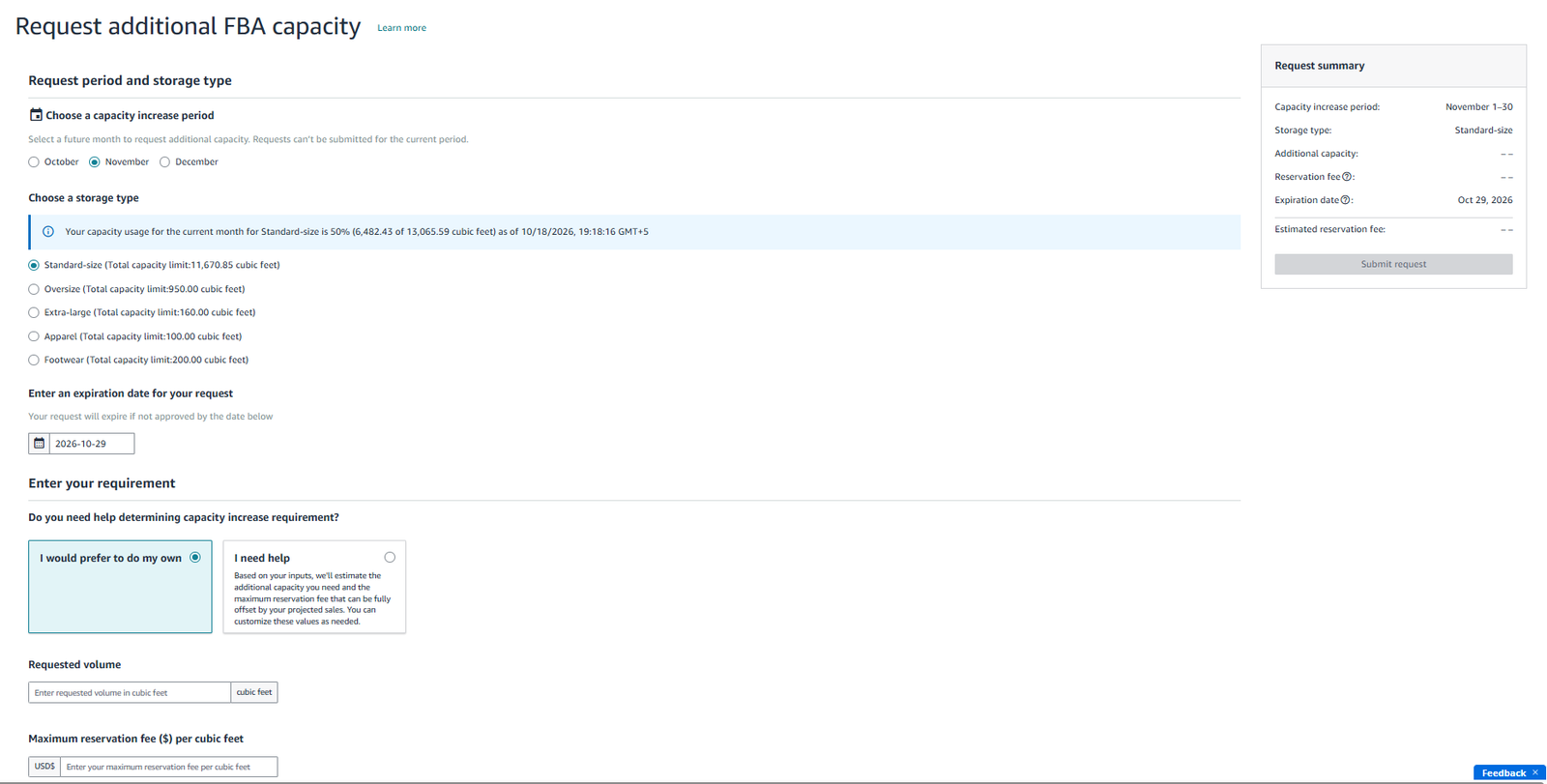
Option 1: you enter the numbers
- Choose a capacity period
The month you need the extra space, such as October or November. Requests can only be made for coming months, not the current one.
- Enter the requested volume in cubic feet
How much extra space you're asking Amazon to approve. See below for how to work it out.
- Enter the maximum reservation fee per cubic foot
Your bid: the most you'll pay per cubic foot if you use the extra space.
- Set an expiration date
The date by which you need an answer. Example: to have space approved before a Black Friday shipment, set it at least 1 to 2 weeks before.
- Review the request summary
Check the volume you're requesting and the total maximum reservation fee match your real sales and inventory needs.
- Submit the request
Amazon reviews it and approves or denies it. If it's denied, edit the request, raise the bid or adjust the volume (see Step 3).
How to decide how much to request
- Check your upcoming demand. Look at your sales forecast for key events such as Prime Day, Q4 promotions or planned launches. If your products peak in certain months, build in extra room now.
- Turn units into cubic feet. Multiply the case pack's length × width × height in inches and divide by 1,728 (the cubic inches in a cubic foot). Multiply by the number of cases you'll send. Bulky products use space fast, so check size tiers.
Forecast: 5,000 units. Case pack: 12 units, 16 × 12 × 10 in
Per case: 16 × 12 × 10 = 1,920 cubic inches ÷ 1,728 = 1.11 cubic feet
Cases: 5,000 ÷ 12 = 417
Total: 417 × 1.11 = 463 cubic feet
Case pack dimensions, units and cases needed, total cubic feet for a capacity request and the maximum reservation fee.
Want these numbers for your own account? Get a free audit →Prefer a spreadsheet? Download the cubic feet calculator (Excel) ↓. Enter the case pack size in inches, the units you want and the units per case; the cubic feet, the 20 to 30% extra and the maximum reservation fee fill in automatically. It also opens in Google Sheets.
How to set the reservation fee
- Use Download reservation fees history (in Capacity Manager) to see what other sellers recently paid.
- Example: if Amazon recommends $2.00 but recent winning bids were $4.00 to $6.00, raise your fee to stay competitive.
- The total maximum fee appears on the right, for example 400 cubic feet × $2.00 = $800.
Option 2: Amazon estimates for you
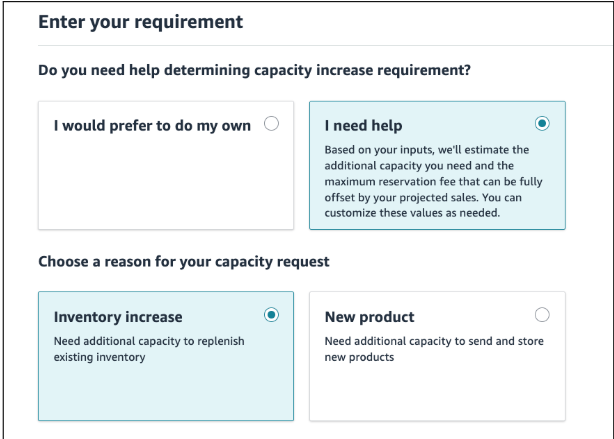
If the form asks whether you need help, select I need help. Amazon then estimates the extra capacity you need and suggests a maximum reservation fee, based on your forecast sales. You can edit both before submitting. Choose this if you're not confident working out cubic feet yourself.
- Choose the reason
Inventory increase for more space to restock existing SKUs; New product if you're launching SKUs that need extra storage. Most sellers choose Inventory increase unless the request is tied to a launch.
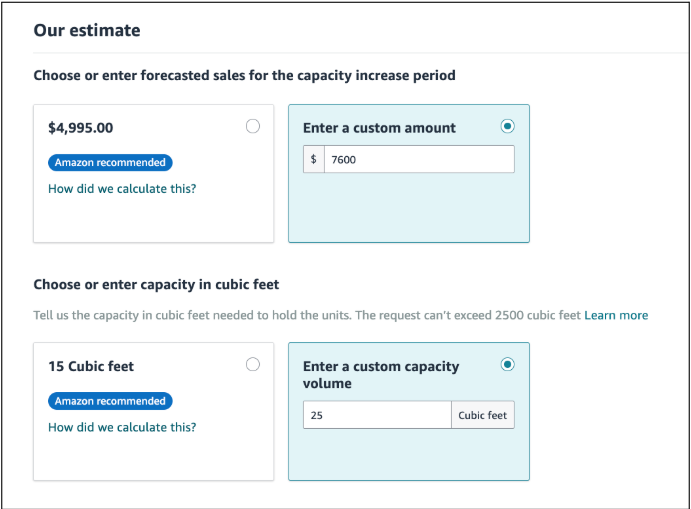
- Review the forecast sales
Amazon may suggest $4,995 based on past sales and expected demand. If you project more, say $7,600, enter a custom amount: it shows Amazon you'll need more space.
- Review the capacity in cubic feet
Amazon may recommend 15 cubic feet. If you know demand will be higher, for example from big holiday promotions or Prime Day shipments, raise it, say to 25. Check it with the calculator above.
- Set the reservation fee
Amazon may suggest $9.11 per cubic foot. Click View reservation fee report and compare with recent winning bids: if they were $4.00 to $6.00, $9.11 is more than needed, and $5.50 to $6.00 is competitive without overpaying. The total shows on the right (25 cubic feet × $6.00 = $150).
- Set the expiration date
The last date you want the request active. If Amazon hasn't approved it by then, it expires automatically.
- Submit
Check every field first. The request then shows under Your pending requests in Capacity Manager.

Step 3: Monitor the approval status
- Check Capacity Manager every day for updates on the request.
- If a VA runs it, have them send the brand manager a daily update: pending, approved or denied.
- If the request is denied, click Edit request
- Raise the bid by 10 to 30%
And resubmit.
- Repeat until it's approved
Step 4: Check for early release
Once next month's request is approved (for example July), go back to Capacity Manager. You should see an Early release line for the current month (for example June). It means the extra space is unlocked now, up to a month early, so you can create or open shipments straight away.

Key takeaways
- Do the maths: unit sales × cubic feet per unit tells you how much space you really need.
- Check the history: always look at the reservation fees history to set a competitive but reasonable bid.
- Plan ahead: requests are only for future months, and approvals often arrive just before the new period starts.
- Opened Capacity Monitor and checked usage and next months' limits
- Worked out the cubic feet needed, plus 20 to 30%
- Checked the reservation fees history
- Submitted the request for the right month and storage type
- Checking the status daily; raised the bid if denied
- Checked for early release once approved
Related guides
- Inventory forecasting processBuild an 8-month sales and inventory forecast from Sellerboard data in ten steps, and use it to decide how much to order and when.
- Inventory planning: 5 key principlesHow to decide your next purchase orders: a six-month forecast, monthly POs that keep six months in the cycle, buffers, best sellers first…
- Amazon Warehousing and Distribution (AWD) playbookWhat AWD costs in 2026, which products qualify, and how to work out whether sending stock through AWD is cheaper than shipping straight to…