
What List Price is
Seller Central lets you add a List Price to your products, also called the manufacturer's suggested retail price (MSRP) or recommended retail price (RRP). You submit it in the backend, and Amazon decides whether to validate it. When Amazon validates and shows it, the product page displays a strike-through price and the saving, which can improve click-through and conversion.
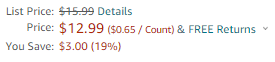
How to change it: edit the List Price attribute of each SKU in Manage Inventory.
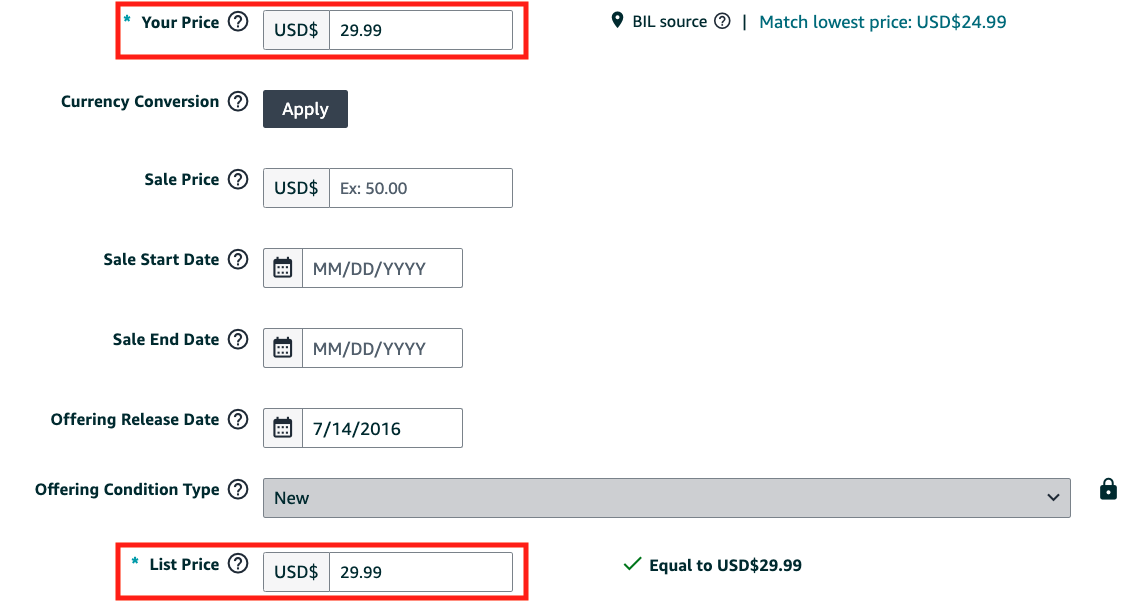
Is it validated?
Validated means Amazon accepted your List Price as a reference price. Entering it in the backend doesn't confirm that. Aim to have a validated List Price on all your top listings where possible. Three ways to check:
| Method | How |
|---|---|
| 1. The product page | It shows the strike-through price. Subject to the display threshold below. |
| 2. A dummy deal (needs deal eligibility) | Start creating a deal: the reference price appears in the flow. You don't have to book it. If validated, it matches your List Price. |
| 3. A dummy price discount | Same: start creating it, read the reference price, don't book it. |


A $20.49 List Price can be validated yet not show at a $19.99 Buy Box price, because of the display threshold.
Reference price: the comparison amount Amazon uses to show savings. With a validated List Price, the reference price equals it. Otherwise Amazon uses the Typical Price ("Was" price): the median price customers paid over the last 90 days. Reference prices affect deal eligibility and discount requirements, another reason to have a validated List Price.
How Amazon validates a List Price
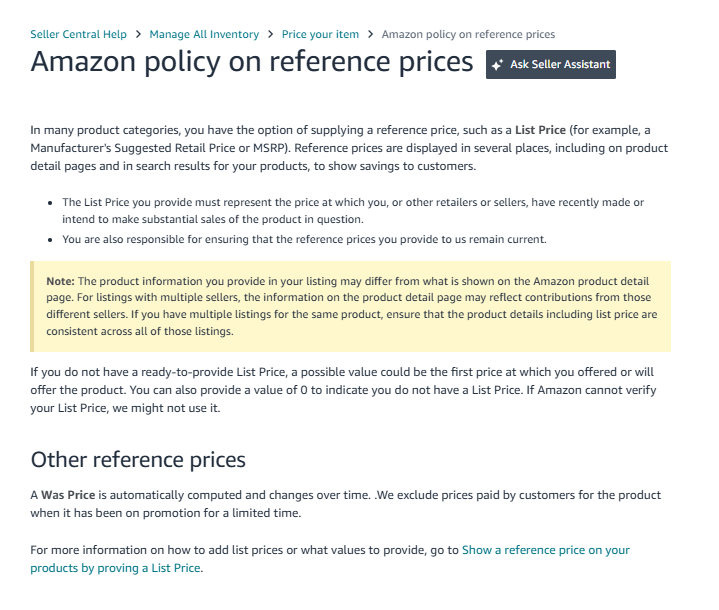
Amazon validates List Prices against recent sales history, recent Featured Offer prices and other retailers. To be shown, the List Price must be a price at which you or other retailers and sellers have recently made (or intend to make) substantial sales, and your offer must be lower than it. You're responsible for keeping it current.
| Rule | What it means |
|---|---|
| Sales and visibility | Through Amazon sales you need both: orders at the List Price, and the List Price matching the Featured Offer price for a meaningful number of days in the last 90. Only orders at Featured Offer prices count. |
| "Matching" | Equal to the List Price or a small margin above it. List Price $29.49: an offer at $29.99 counts; an offer at $40.00 doesn't. |
| Validated vs not | Headphones listed at $50 qualify if $50 was the Featured Offer price for a meaningful number of days in the last 90. Speakers listed at $100 don't if $100 wasn't featured in the last 90 days. |
| Peak-event exclusion | For ASINs with 30+ days of price history, the 2 weeks before and during peak events are left out of the window, so price increases right before an event don't count. A List Price not validated before the exclusion starts can't be validated through Amazon sales during it. The full 90-day window returns after the event. |
| Other retailers | A List Price can also be validated with other retailers' prices; the price-history requirement then doesn't apply. |
| No List Price yet | A possible value is the first price at which you offered the product. Enter 0 if you have no List Price. |
| Several listings | If you have more than one listing for the same product, keep the List Price consistent across all of them. |
Check it in price history: on the product detail page, click the Price history link next to the offer price. A valid List Price shows as a data point in the last 90 days.
- Update one ASIN
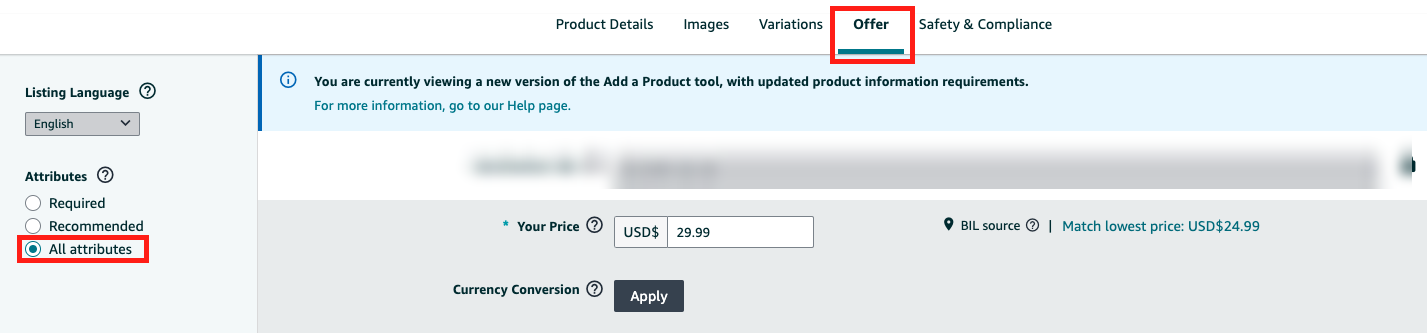
Search the ASIN/SKU → Edit → Edit listing → Offer tab → turn on All attributes → fill in List price (name and position vary by store and category) → Save and finish. Changes usually show within a few hours; check Manage All Inventory.
Seller Central›Catalog›Manage products
- Update in bulk
Download spreadsheet → Get product template (under Update product details) → Product Template → search the product type and stores → Generate spreadsheet. In the Offer section (shaded red) fill list_price, plus SKU, Product ID and Product ID Type, and set update_delete to Partial update so only the filled fields change. Upload it in the Upload your spreadsheet tab. Keep a backup of the completed template.
Seller Central›Catalog›Add products›Spreadsheet›View templates
Limitations
- Generally unavailable or unreliable in Canada, Australia and France.
- Available in Italy and Spain, but validation is less stable.
- Usually unavailable for Grocery products in the US.
- Newly launched products may not have enough history for a stable List Price.
Validation through Competitive Price
Amazon validates through two routes: customer purchases at the List Price as the Featured Offer on Amazon, or the price at another retailer. Competitive Price in Manage Inventory shows an external price Amazon detected for your product at another retailer or channel. Amazon uses it to judge whether your offer is competitive: pricing above it can cost you Buy Box (Featured Offer) eligibility.
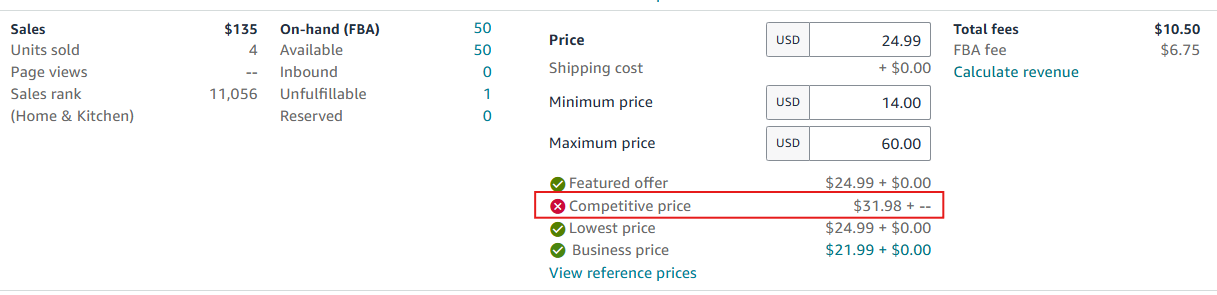
Because it comes from an external source, it can also validate a List Price. In testing, entering the detected Competitive Price as the List Price led to validation in about 80% of cases, within up to seven days (an observed rate, not an Amazon guarantee).
- Find ASINs with a Competitive Price and no validated List Price
Inventory → Manage All Inventory; check validation with the methods above.
- Enter the exact Competitive Price in List Price
On every SKU of the ASIN, including FBM. Open Edit listing → Offer tab → All attributes. Don't change Your Price, Sale Price or your selling-price setup. Save.
- Wait up to seven days, then check validation
Remember a validated List Price can stay hidden if it's under the display threshold.

Related guides
- Pricing table: gross profit margin and the right priceWork out each product's gross profit margin before PPC and refunds, compare it with the 36–42% range, and decide whether to test a lower…
- Fixing contribution issues in Seller CentralWhen your listing edits are accepted but don't show, a stronger contributor owns the attribute: push the change at the source, then by…